Import a PDF
Bring a screenplay or audition sides into Action. Review the detected text: unusual layouts and scanned pages can need correction.
The app, in detail
Explore script preparation, reader voices, Live Scene Partner and self-tape recording. See what Free includes, what Pro adds and what Ultra offers now.
01 · Self-tape recording
Record your performance and the other characters’ dialogue together, using the selfie camera on your iPhone.
Free: one saved take per scene, up to three per script, with Apple reader voices. Pro: unlimited takes and access to AI reader voices. Deleting a take frees its slot.
See every self-tape feature →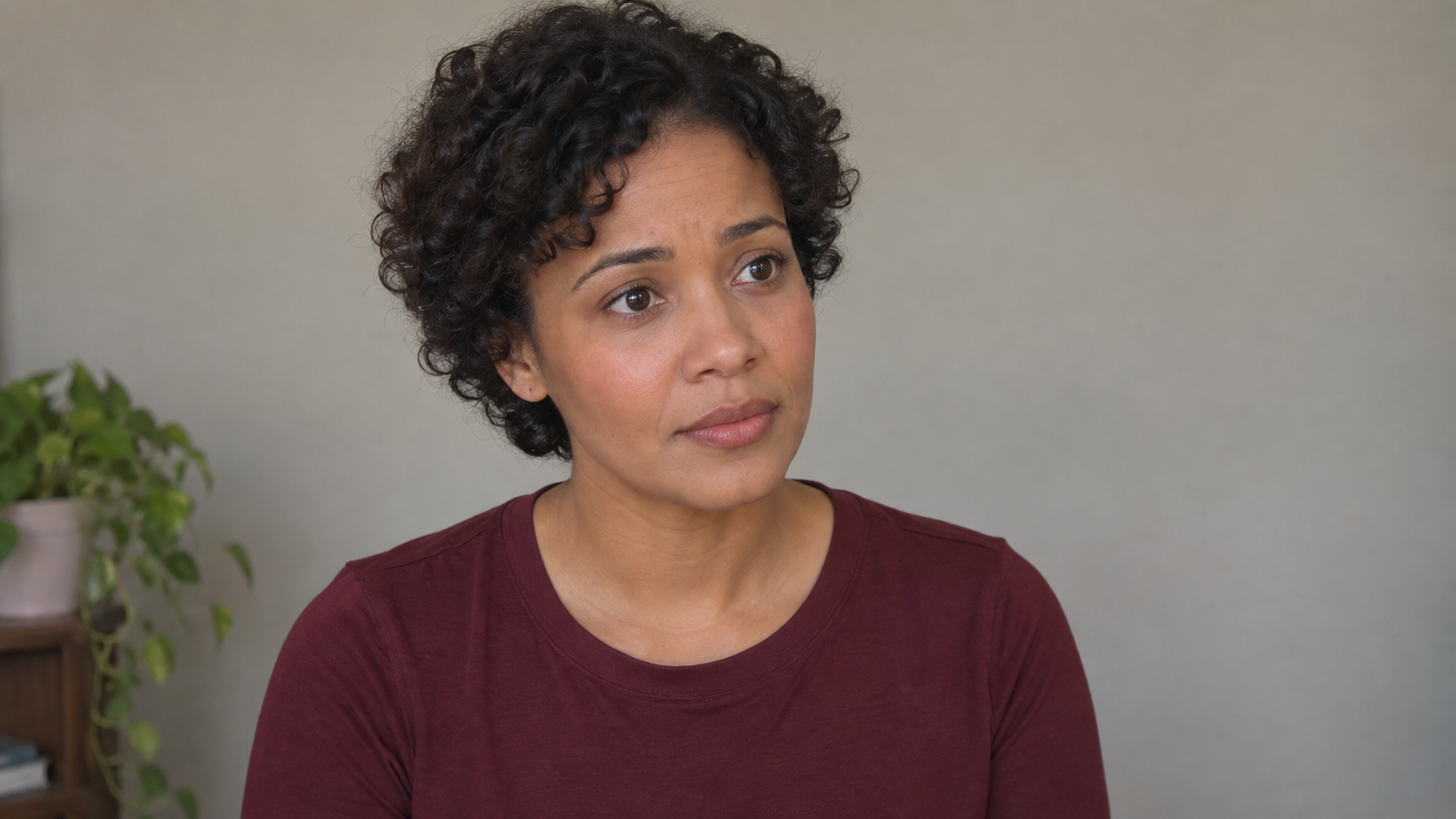 ● REC 00:18
I was hoping you’d still be here.
MORGANI said I’d wait.
02 · Free and Pro
Start with your own pages, then check the breakdown before you rehearse.
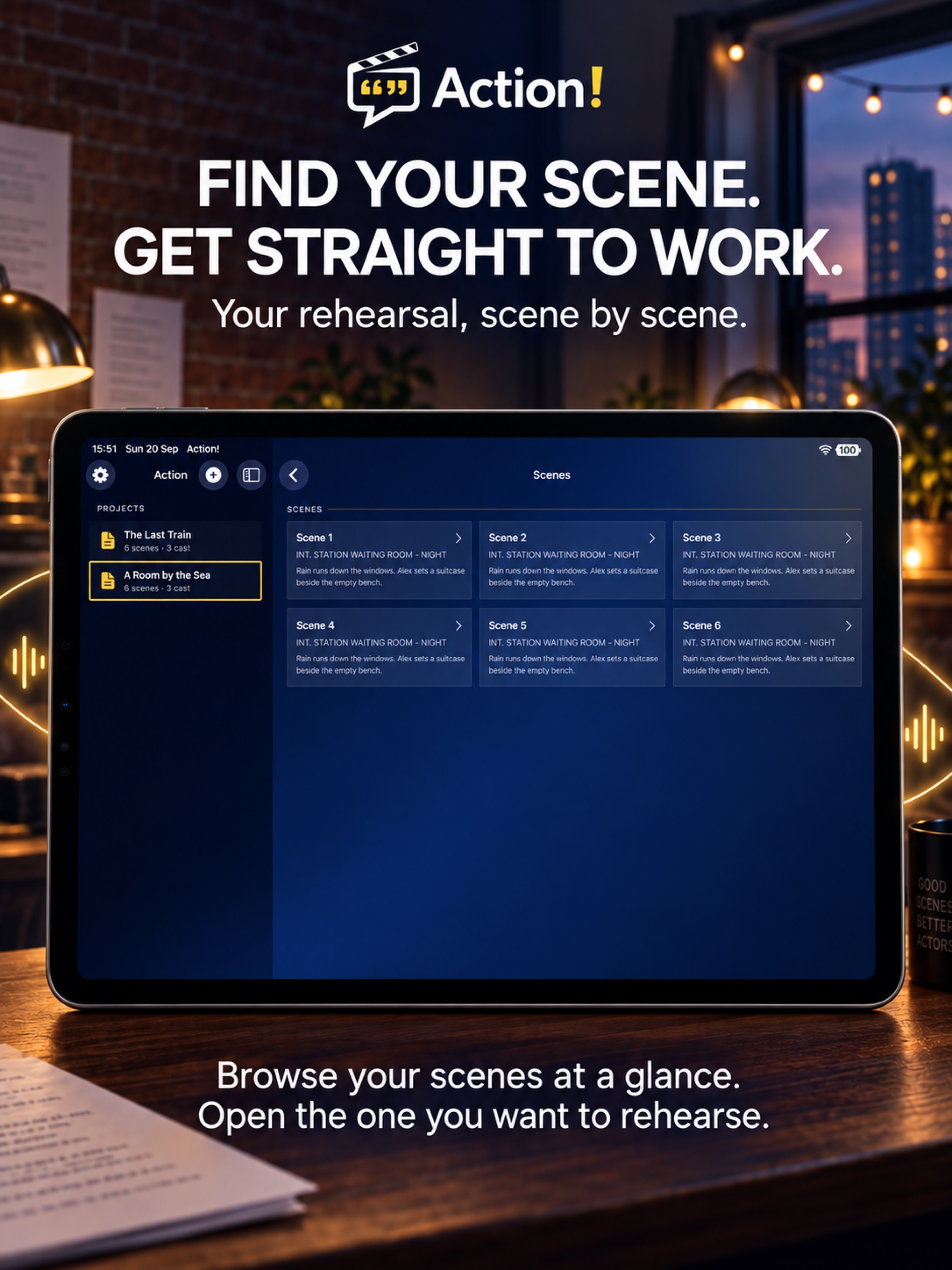

Bring a screenplay or audition sides into Action. Review the detected text: unusual layouts and scanned pages can need correction.
Browse the scene list, find a character’s scenes and choose the role you will perform.
Read and edit the imported dialogue. Correct speaker assignments and distinguish dialogue from action before generating the reader’s audio.
Free keeps one screenplay project. Pro lets you keep multiple scripts, so you can move between auditions and longer projects.
03 · Apple voices free · AI voices with Pro
Choose your role and let Action supply the other characters’ lines.
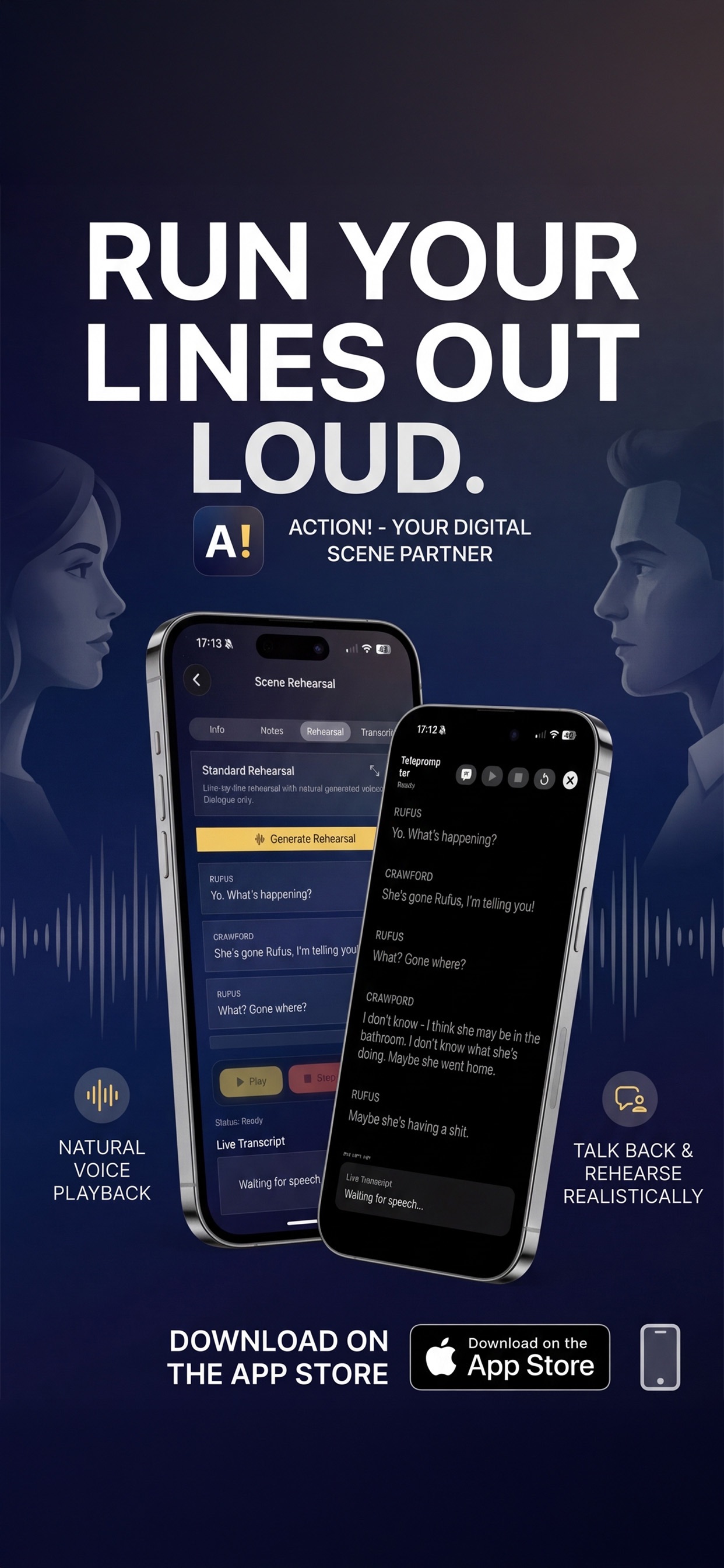
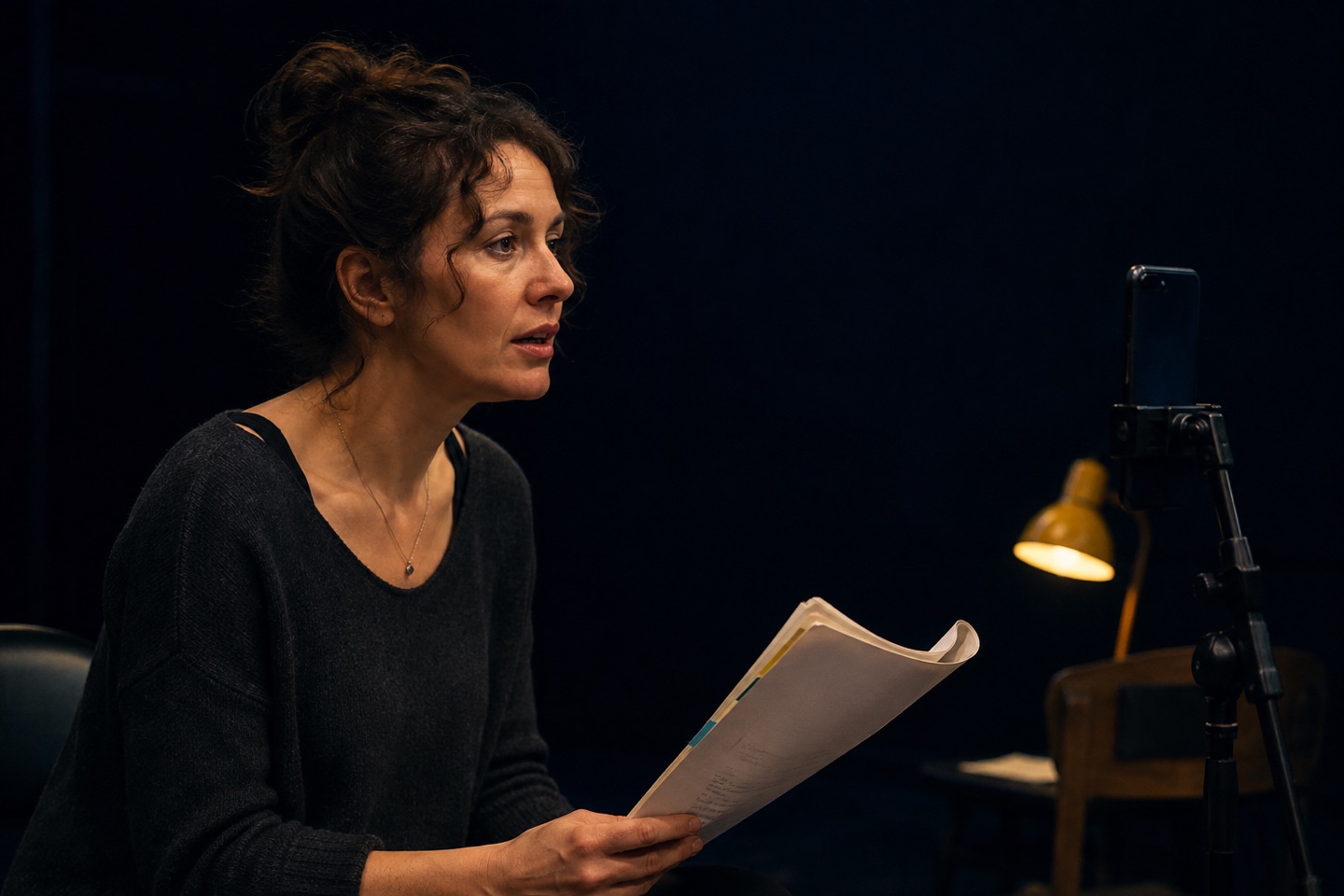
Rehearse with the Apple system voices available on your iPhone. Choose and preview a voice before you start.
Pro adds generated voices for the other characters and narrator. Assign voices to keep the parts distinct.
Generate the scene’s spoken lines, then rehearse against that audio. If you change the voice choices, regenerate the scene.
Action listens to your line and advances to the next cue. This is scripted rehearsal, not an open-ended conversation or a rewrite of your dialogue.
04 · Rehearsal controls
Use the page when you need it, then reduce the help as you learn the scene.
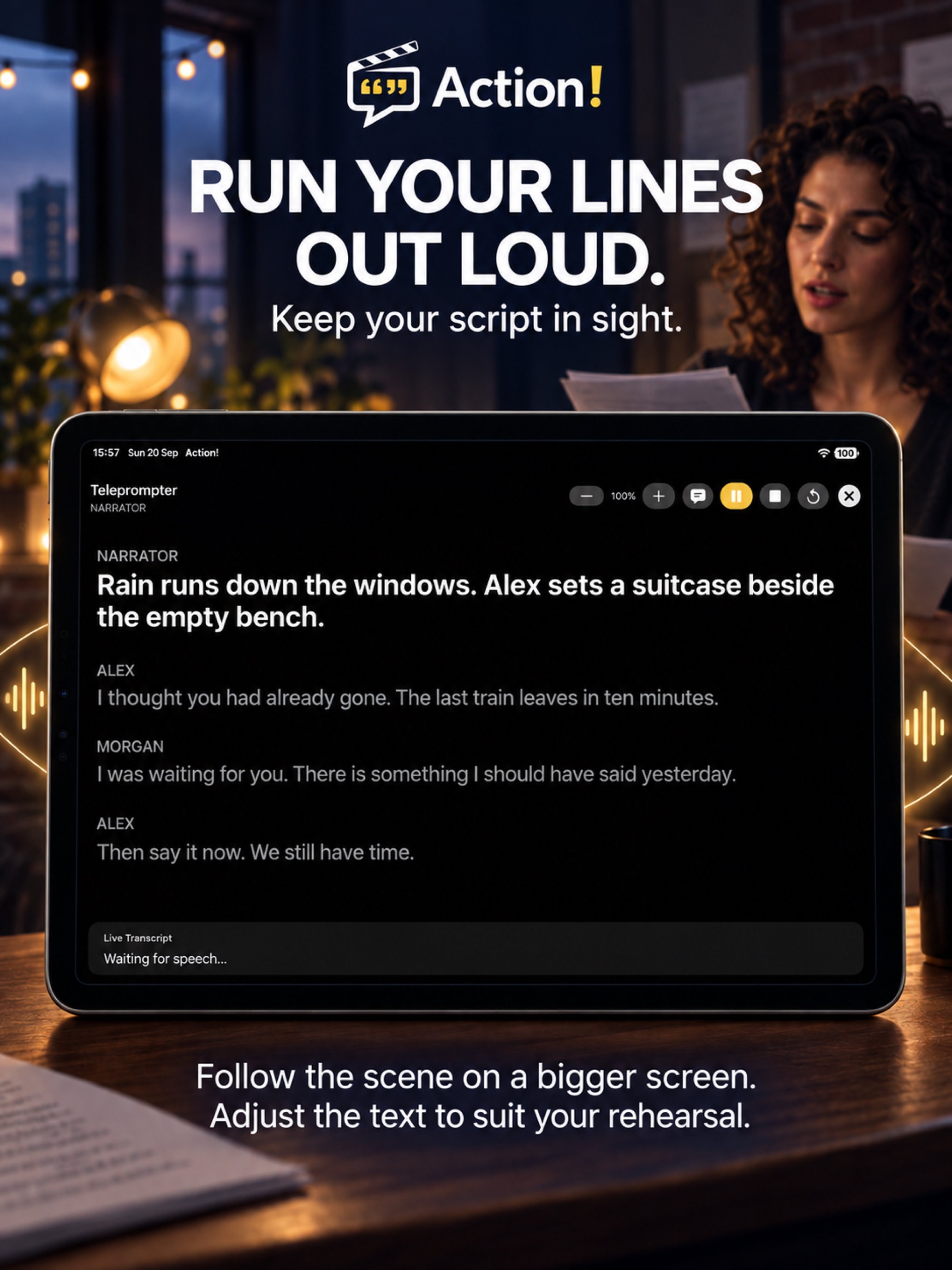
Keep the script visible, change the text size or show only your character’s lines.
See the words Action recognises as you speak. Recognition can vary with the room, microphone and delivery.
Choose how closely your spoken line must match the script before the reader continues.
Adjust the pause between chunks and how quickly the reader responds after your line is matched.
Choose whether action lines are spoken and whether the scene includes an introduction and outro.
Use configurable spoken commands to play, pause, restart or ask for your line. Pro can also skip bracketed dialogue cues in spoken rehearsal.
05 · Preparation and review
Keep the work organised and use feedback to decide what to practise next.
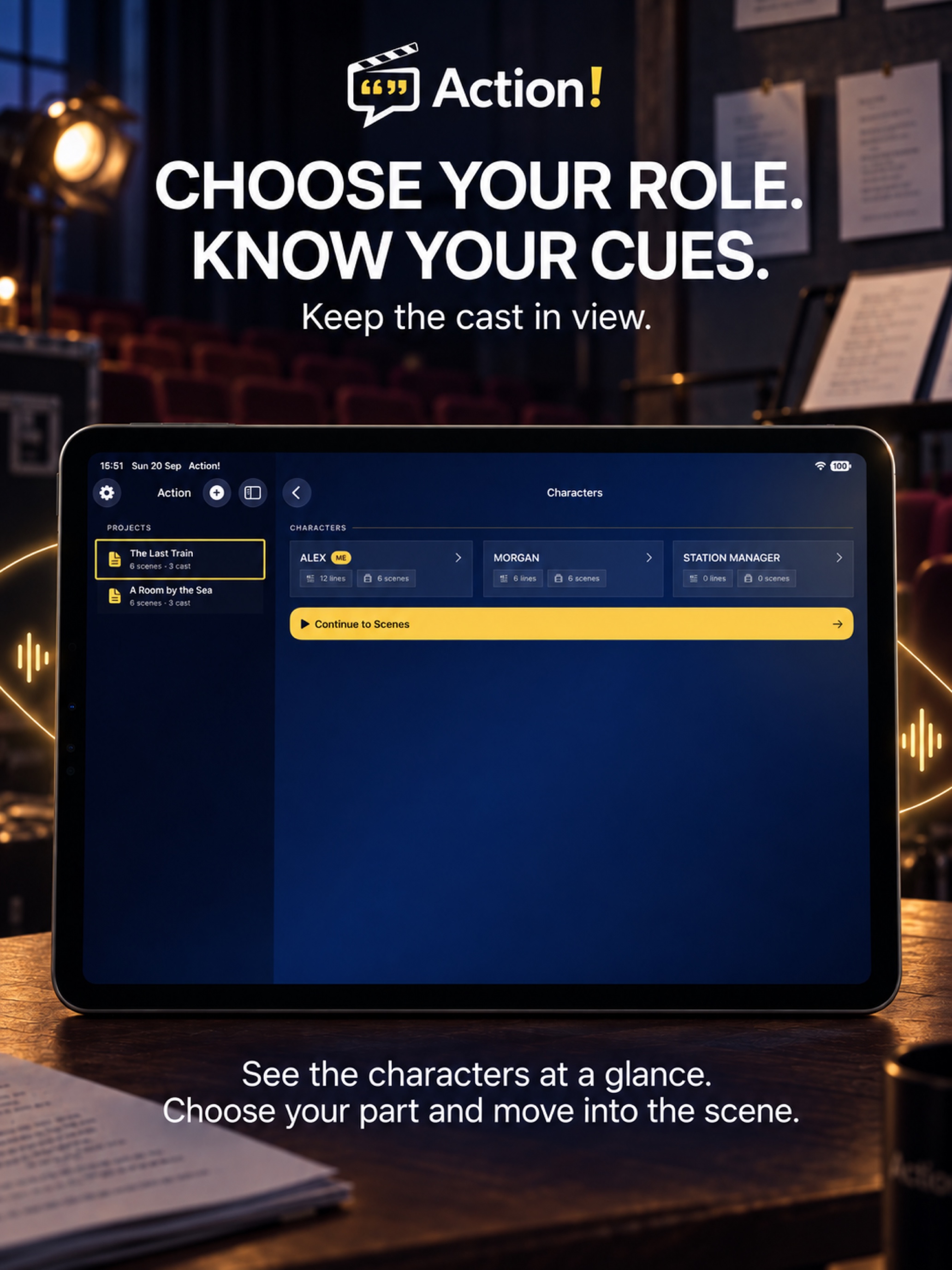
Find a character’s dialogue and scenes together, with voice choices alongside the role.
Use generated summaries and notes as starting points for your own interpretation. These preparation tools are included in the Pro feature set.
Review line accuracy and adjust scoring strictness separately from the setting that advances the scene. Recognition scores describe word matching, not the quality of your acting.
Work through audition sides, dialogue, monologues and longer scripts. Table-read-style playback helps you hear the scene’s overall pace.
06 · Included feature
Shape the other character’s reading with emotion and intensity controls for individual lines when generating supported AI reader audio.
Set the tone for a particular line, or keep a neutral reading when you want more room for your own interpretation.
Choose a subtle, moderate or strong delivery. Generate the reader audio with those choices, then hear how the exchange plays.
07 · Included feature
Choose the language Action listens for and save it with the script, so each project keeps its own speech-recognition setting.

Select the language and regional option that match the lines you will perform. The setting applies when Action listens during rehearsal and self-tapes.
This setting does not translate the screenplay, change the app’s menus or choose new reader voices. Available recognition languages depend on your device and iOS version.
A guide to Apple’s published language coverage. Action shows the options supported on your device; not every language or regional variant is available on every iPhone or iPad.
Regional choices include British and US English, French for France and Canada, and Portuguese for Portugal and Brazil where supported. This setting changes listening, not translation.
Apple’s language coverage · Language details and how to choose
08 · Included feature
Use layouts adapted for the larger iPad screen, with space to browse your material and keep the script in sight.
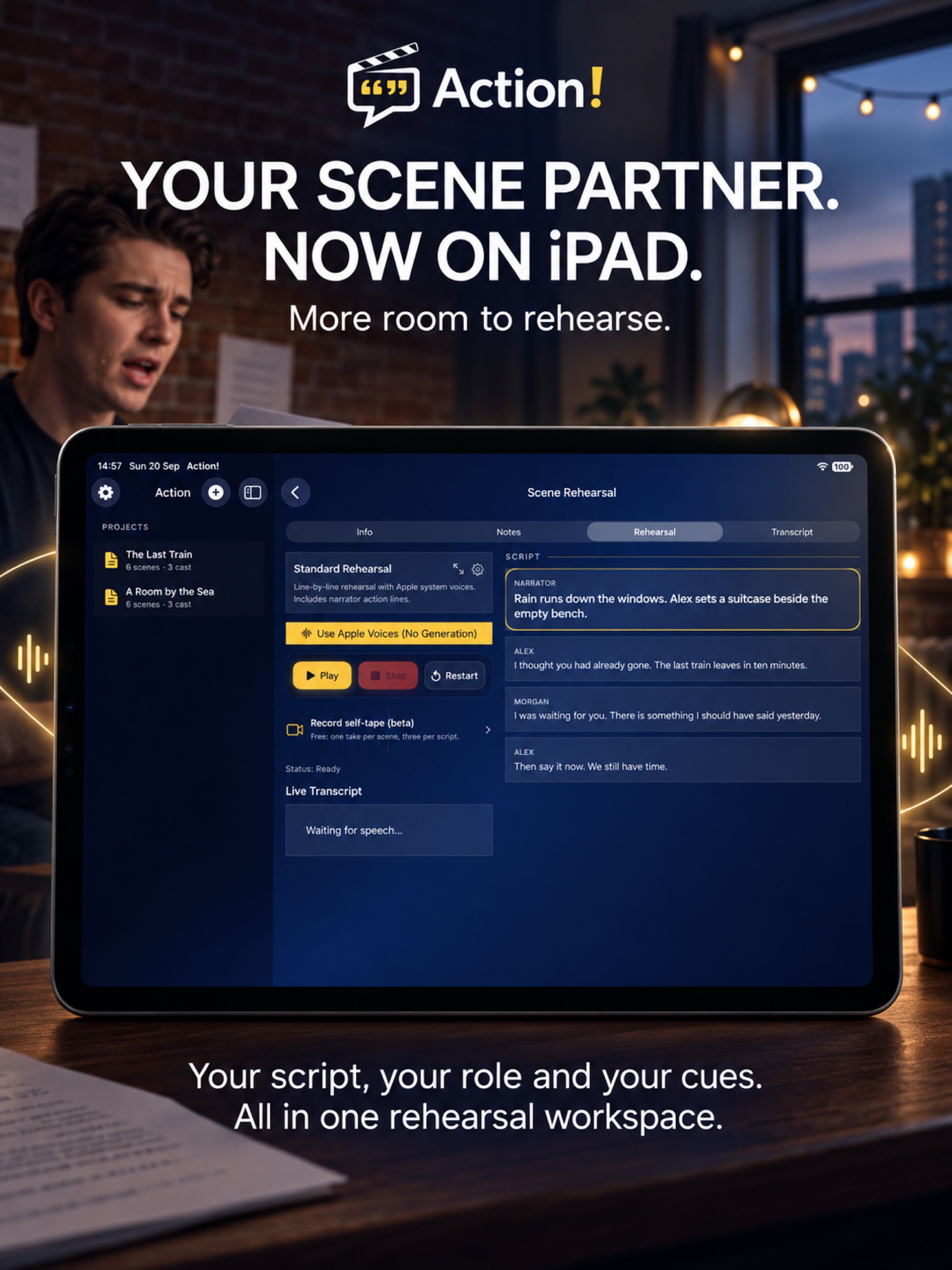
Move through the scene list and character cards to find the part you want to work on.
Read the scene on a larger screen and adjust the text size to suit where you place your iPad.
Action Ultra · Available now
Pro gives you generated AI reader audio for the scripted parts. Ultra adds Live Scene Partner: an intelligent voice that hears you in the moment, takes the other roles and responds as the scene progresses.
Choose your role and speak your lines. Your partner follows the script, waits for you to finish and plays the next character line.
Ask for your current line or hear the other character’s cue again. Resume from the same place instead of starting over.
After the scene, ask for feedback on missed or changed words and audible choices such as pace and emphasis. Try another run while the exchange is fresh.
Ultra includes everything in Pro and 120 minutes of Live rehearsal each subscription month. Eligible new subscribers can try it free for three days.
Choose what you need
Start with one script and Apple voices. Pro adds generated AI reader voices and room for more projects. Ultra adds Live rehearsal with 120 minutes each subscription month. Self-tape recording is available in version 1.8.
On a small screen, swipe the table sideways to compare the plans.
| Feature | Free | Action Pro | Action Ultra |
|---|---|---|---|
| Saved screenplay projects | One | Unlimited | Unlimited |
| PDF import, scenes, characters and transcript review | Included | Included | Included |
| Installed Apple rehearsal voices | Included | Included | Included |
| Generated AI reader voices | Not included | Included | Included |
| Smart voice commands | Not included | Included | Included |
| Self-tapes | One saved take per scene, up to three per script | Unlimited saved takes | Unlimited saved takes |
| Self-tape reader | Apple system voice | AI or Apple system voice | AI or Apple system voice |
| Framing, countdown, screen modes and separate line matching | Included within the take allowance | Included | Included |
| Trim, reader volume, smoothing, rename, delete, share and Photos export | Included within the take allowance | Included | Included |
| Live AI scene partner, cues and spoken feedback | Not included | Not included | 120 minutes each month |
| Free trial | No subscription | Three days for eligible new subscribers | Three days for eligible new subscribers |
Apple shows your eligibility, trial and local price before you subscribe. A customer can use one introductory offer within the Pro and Ultra subscription group. Purchases can be restored in the app. Manage or cancel a subscription through your Apple account.
Action supports iPhone and iPad and requires iOS 17 or later. Spoken rehearsal needs microphone and speech-recognition access. Self-tape recording also needs camera access.
Generating AI voices and notes needs an internet connection. Saved recordings use device storage. Skin smoothing is processed on the device; sharing or saving to Photos creates a separate copy.
The free line planner, cue-line trainer and script extractor run on this website. They are not extra features hidden behind an app subscription. Open the free tools.
Checked on 1 October 2026. Version 1.8 includes self-tape recording and a gallery for takes and intros organised by script. Check the current App Store version before downloading.
Start with your own pages
Download Action, import a script and choose your role.
Get Action on the App Store